---
title: Appearance
order: 3
summary: The bar layouts, dock, app grid, windows, animations, fonts and backgrounds, one setting at a time.
---
# Appearance
`bxrig appearance` changes how the shell and the windows look. Each change acts at once, is remembered, and can be shown first with `--dry-run`. For colors, see [Themes](themes.md).
```bash
bxrig appearance status
bxrig appearance bar position bottom # top, bottom, left, right
bxrig appearance bar style glassy # opaque, glassy, clear
bxrig appearance bar clock iso # ten clock formats (time-24h, sunday-12h, date-24h, iso ...)
bxrig appearance bar battery on # the percentage next to the battery
bxrig appearance bar layout minimal # minimal, standard (the default), dense, status
bxrig appearance dock off # on, off, toggle, status: the grid button moves between the dock and the bar
bxrig appearance appgrid launchpad # launchpad, terminal, status
bxrig appearance battery-percent on # laptops only
bxrig time format "%a %-I:%M %p" # the bar clock's text; default "%b %-d - %H:%M" reads Nov 5 - 04:00
bxrig appearance dock mode autohide # always, autohide, off
bxrig appearance windows gaps off # no gaps and no borders
bxrig appearance windows corners sharp # theme, rounded, sharp
bxrig appearance windows opacity glassy # opaque, glassy
bxrig appearance animations off
bxrig appearance layout columns # dwindle, master, columns, scrolling, monocle, floating
bxrig appearance windows snap off # floating windows stop snapping to edges (on by default)
bxrig appearance font list
bxrig appearance font install cascadia --yes
bxrig appearance font cascadia # the coding font: terminals (and the shell, until you pick an interface font)
bxrig appearance ui-font inter # the interface font: bar, panels and GTK apps
bxrig appearance font-rendering smooth # default, smooth, crisp, sharp
bxrig appearance background random # or: list, set NAME, next
bxrig appearance apply # push everything you chose again
bxrig appearance icons papirus --yes # the icon set: bxrig (default), papirus, status
```
## The three bars
`bxrig appearance bar layout` picks one of three bars. Standard is the default. They all end with quick settings and then the control center, and they use bare icons coloured by the theme: only the logo button and the Launchpad grid carry a plate (a tile with an outline, so it stays visible on dark and Retro bars).
| Layout | Start | Center | End |
|---|---|---|---|
| Minimal | logo, workspaces, active window | clock | tray, network, volume, battery*, notifications, quick settings, control center |
| Standard | logo, workspaces, active window | clock, media | agents, capture, system, developer, VPN, tray, clipboard history, network, Bluetooth, volume, battery*, notifications, quick settings, control center |
| Dense | as Standard | clock, weather, media | as Standard, plus brightness |
\* The battery widget is written only when a battery is found (a laptop). It shows the percentage; `appearance battery-percent off` hides the number.
- **Logo** opens the BxRig menu (`bxrig menu`). **Clock** is one widget: the time as text, a popover with your local time, the other zones you follow (`bxrig time world`) and a Calendar button; right click opens the Noctalia calendar.
- **Developer** (a code glyph, Standard and Dense) shows how many databases, containers and VMs are running. Its popover has three tabs: Databases (`bxrig db`), Containers (`bxrig containers`, over Podman or the engine `db engine` chose) and VMs (`bxrig vm`). Each row has a state dot, the host ports, start and stop (stop asks for a second click), a copy button for the connection string or address, and a logs button that opens `bxrig containers logs NAME` in a terminal; the footer opens the Machines page of `bxrig tui`. It refreshes every 15 seconds while open and every 2 minutes for the number.
- **Dock** is on by default. The Launchpad grid is its first button, so the grid is not in the bar; with `dock off` the grid button returns to the bar, right after the logo.
- **Quick settings** (`bxrig/quick`, the sliders icon) is a popover of switches and pickers: Caffeine, Do Not Disturb, Dark/Light/Auto, Dock, Battery percentage (laptops), App grid style, Top bar layout, Clock format, a button to the control center Home tile for Night light, and a button that opens the BxRig Control Center. Its **Themes** row opens the theme switcher (search, preview, Enter applies). Every control runs the matching bxrig command with `--yes` and shows its result. Caffeine is a switch here, not a bar icon: Noctalia can switch it (`noctalia msg caffeine-enable|disable`) but cannot report its state, so the switch shows what you last set in the popover.
- **Battery and power are one panel.** The battery is Noctalia's built-in widget (laptops only). A left click opens the BxRig **Power** panel (`bxrig/power`, a panel without a bar widget of its own); a right click opens the control center Power tab. The panel shows the charge, state, time remaining, watts, health and cycles, the power profile (Saver, Balanced, Performance), what closing the lid does on battery and on AC, Suspend and Hibernate (each asks first; Hibernate is greyed out with the reason until swap and resume are ready), and a charge limit slider when the battery supports it. It refreshes every 15 seconds while open. The lid and charge limit changes need sudo, so the panel runs them in a terminal window where the password is asked. The separate power profile widget is not on the bar.
- **System** (`bxrig/system`, a monitor glyph) shows the number of waiting updates beside it, hidden when there are none. Its popover has two tabs. **Updates** lists the repository and AUR packages (`bxrig system updates`), warns when a restart is needed (a kernel, systemd or glibc update, or a kernel that was already replaced), and **Update all** opens a terminal that runs `bxrig system update --yes`, so you see the snapshot that comes first and the progress. **Backups** shows a row for config snapshots, system snapshots and your files with the last run, the next run, the size and a health mark (`bxrig backup status`); **Back up now** and **Open Time Machine** run in a terminal too. The count is read every 10 minutes in the background and every minute while the popover is open.
- **VPN** (`bxrig/vpn`, a shield, Standard and Dense) is one list of every VPN you can use: the saved NetworkManager VPN and WireGuard profiles and the VPN apps (NordVPN, NordLayer, Tailscale, Mullvad). The shield is green while one is connected and grey otherwise, and hides itself when no VPN is installed. Switching one on disconnects the one that is connected, unless you turn on "Allow more than one at the same time" (`bxrig vpn set allow_several=true --yes`). A pin button picks a country or exit node. The same list is `bxrig vpn list`.
- **App grid**: `launchpad` is the launcher's grid view. `terminal` (a Terminal-style grid) is only remembered for now: nothing draws it yet, so the launcher keeps the Launchpad grid.
- **Clock format** uses Noctalia's date format tokens (https://docs.noctalia.dev/noctalia/configuration/date-format-tokens/). A pattern without a `%`, like `MMM d - HH:mm`, is read as letters (yyyy MM dd HH mm ss a ...) and converted.
These five settings (`bar layout`, `dock on|off|toggle`, `appgrid`, `battery-percent`, `time format`) rewrite `~/.config/noctalia/config.toml` through the config service: the theme and wallpaper you have are kept, a backup is made, and a running Noctalia reloads the file. If the file has changes of your own, the command shows a plan and `--yes` replaces it (the backup keeps yours). Noctalia's own settings window stores its changes separately and wins over the file; if the bar does not follow a change, look at `~/.local/state/noctalia/settings.toml`. The plate images are written to `~/.local/share/bxrig/plates/`. Noctalia's own first-run wizard is turned off in this config.
## Where the changes go
- **Noctalia** (bar position and style, dock mode and position, battery, font, corner radius) is changed with `noctalia msg config-set`, so your `config.toml` is not edited. Without Noctalia the choice is saved and `appearance apply` pushes it later.
- **Hyprland** window looks (gaps, corners, opacity, animations, layout) are one generated file, `~/.config/bxrig/theme/look.lua`, loaded by `bxrig.lua`. BxRig reloads Hyprland after a change. Your own `hyprland.lua` is never touched.
- **Fonts** are in three parts, also on the Look page of the Control Center (Fonts):
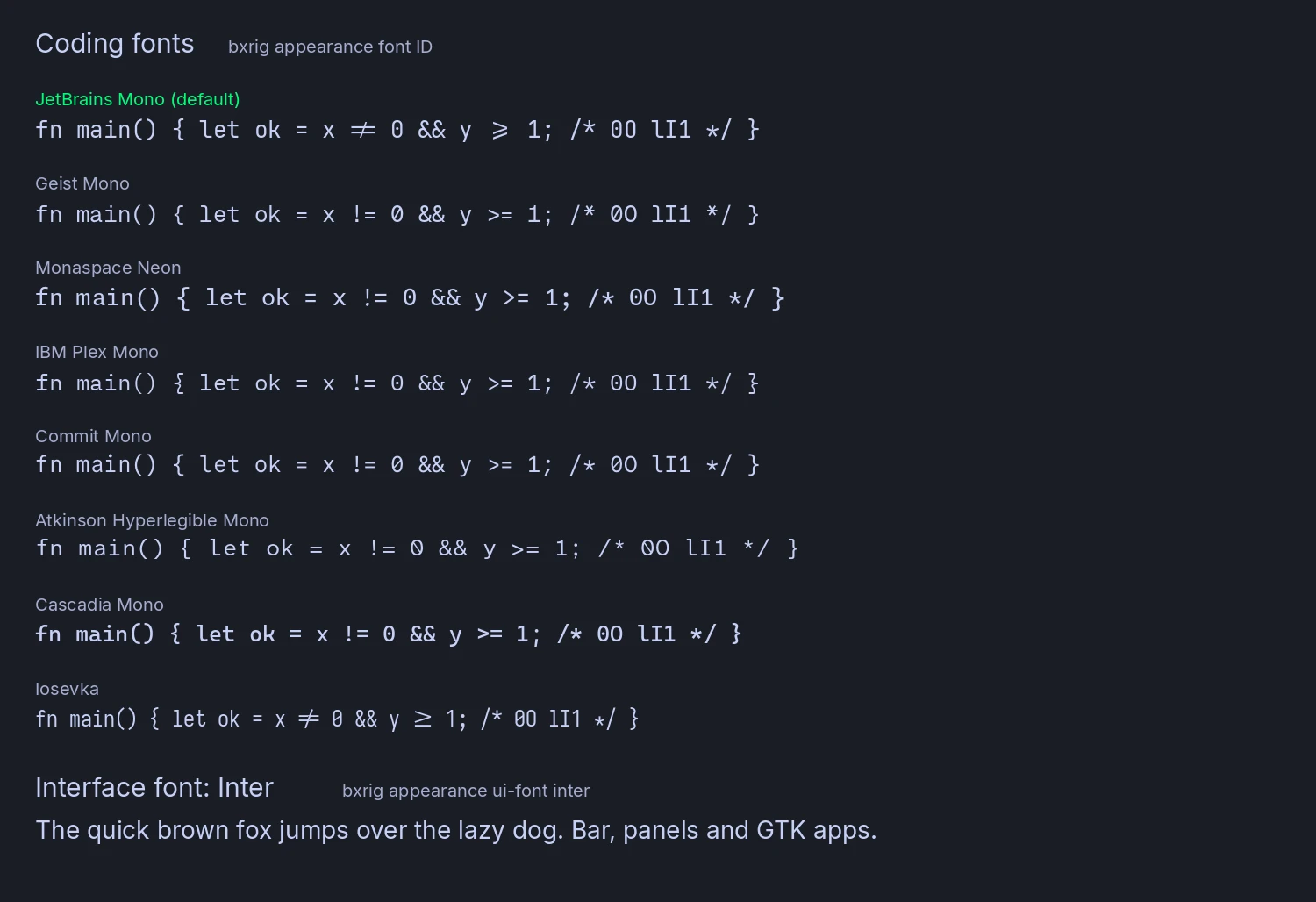
- **Coding font**, one of fifteen Nerd Fonts (`appearance font list`). JetBrains Mono is the default. Geist Mono, Monaspace Neon, IBM Plex Mono, Commit Mono and Atkinson Hyperlegible Mono (made for low vision) are new. Changing it updates the terminal configs BxRig wrote, but never one you edited (it tells you which).
- **Interface font** (`appearance ui-font list`): Inter, Noto Sans or IBM Plex Sans, for the bar, the panels and GTK apps. Inter is made for screens and is the closest to the Mac's system font. Until you pick one the shell uses the coding font. Plasma keeps its own font (System Settings > Text & Fonts).
- **Rendering**: `smooth` (no hinting, the Mac look, best on HiDPI), `crisp` (slight hinting, sharper on 1x screens), `sharp` (full hinting and subpixel, for low-resolution LCDs) or `default` (your distribution's). BxRig writes `~/.config/fontconfig/conf.d/60-bxrig-rendering.conf` and GTK's hinting settings; `default` removes the file unless you edited it. Open apps pick it up when they restart.
- **Backgrounds** are read from `~/Pictures/BxRig`, `~/Pictures` and the current theme's folder.
The menu has all of this under Appearance.
## Icons
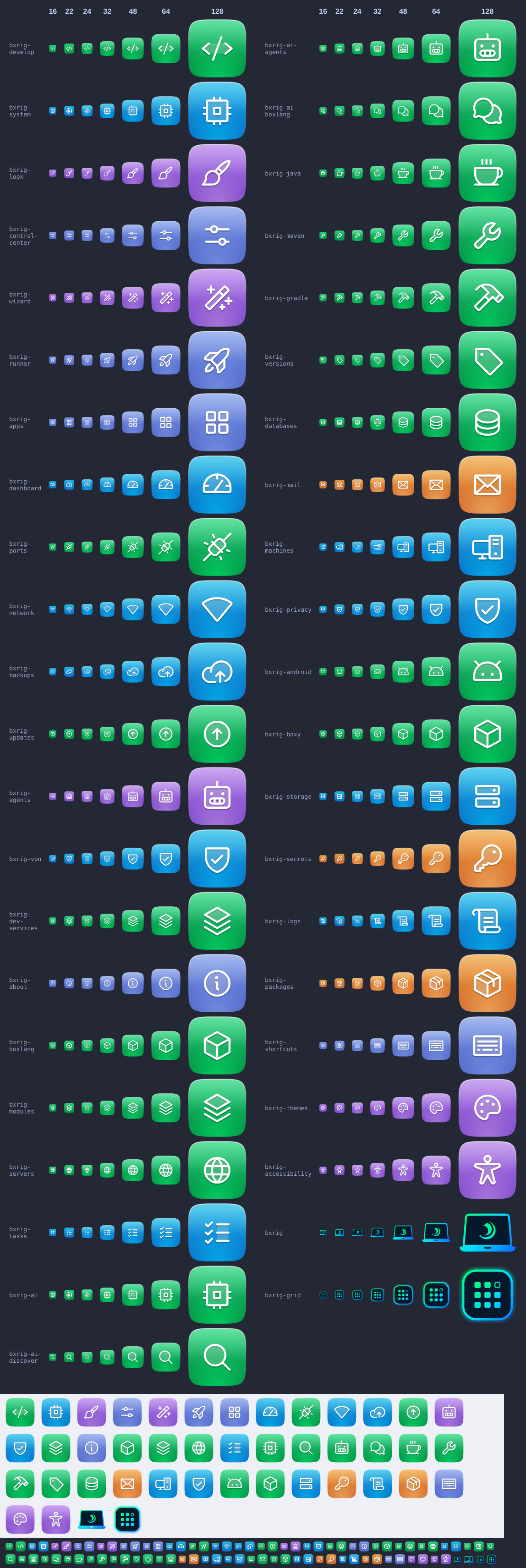
BxRig has its own icon theme, **BxRig**: superellipse tiles with a vertical glow and a white Phosphor duotone glyph, one color per kind (develop green, system blue, look purple, control indigo, utility amber). It covers what BxRig itself owns: the BxRig laptop and the app grid, the Develop, System and Look folders, the Setup Wizard, Runner menu, Control Center, About, and one icon for every page of `bxrig tui list`. Everything else is Papirus-Dark: the theme inherits it (`Inherits=Papirus-Dark,hicolor`), so apps look as they do in Papirus.
| 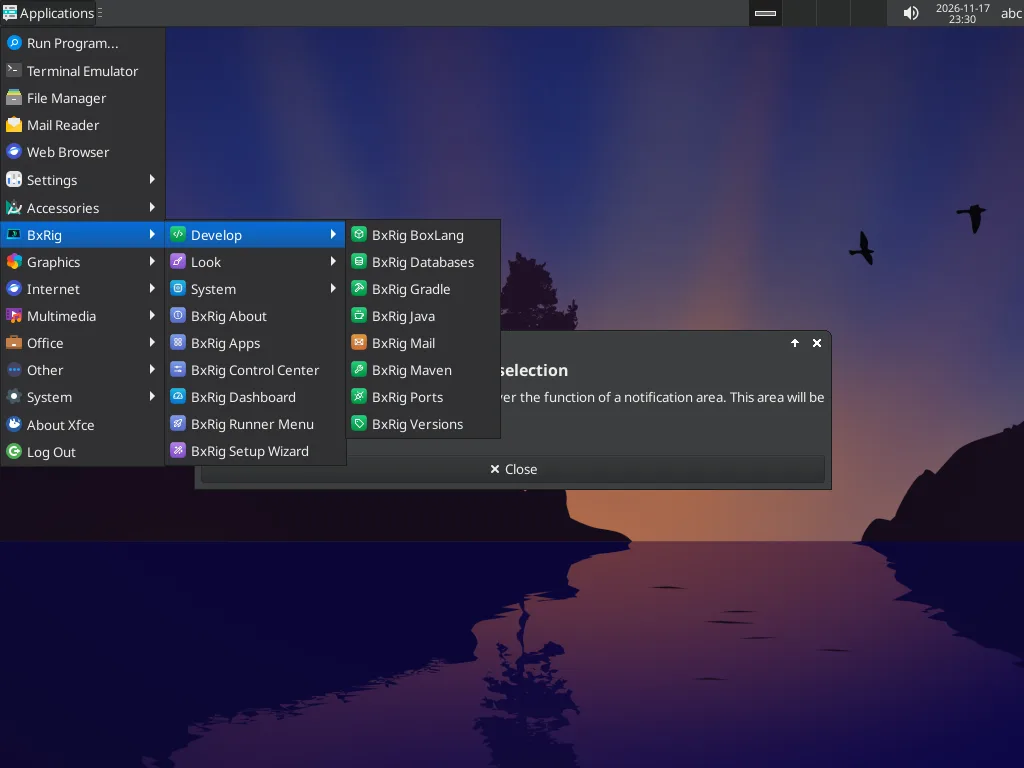
**The application menu** (XFCE) | 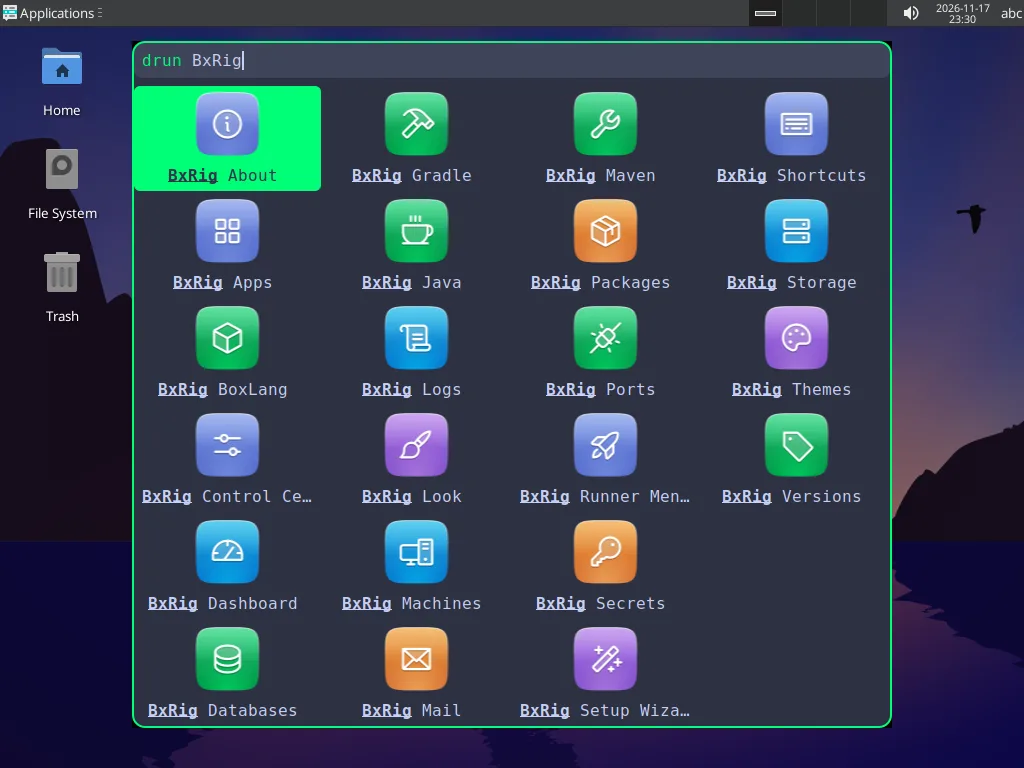
**A launcher grid** (Rofi) |
|---|---|
```bash
bxrig appearance icons status
bxrig appearance icons bxrig --yes # the default after `bxrig init` / setup: BxRig icons over Papirus-Dark
bxrig appearance icons papirus --yes # Papirus-Dark alone; the BxRig launchers use the stock names again
```
The icon set is not a question in the wizard: setup applies `bxrig`, and this command switches later. It installs `papirus-icon-theme` (Arch `extra`, in the default tier of the catalog) when Papirus-Dark is missing, writes the theme to `~/.local/share/icons/BxRig`, and sets GTK (gsettings, the settings.ini line when the file has one, xfconf on XFCE), Qt (`qt6ct.conf`, and Plasma's icon theme), and the runner (Rofi, Fuzzel and Wofi through `bxrig runner icon-theme`). The application-menu launchers (`bxrig launchers on`) are rewritten to follow it. It writes files, so without `--yes` it prints the plan (exit 2). The glyphs are [Phosphor Icons](https://phosphoricons.com) (MIT); the licence is installed with the theme.
A theme-less icon name never leaves a gap: with `papirus`, or when an older BxRig has no theme installed, the launchers and the runner menu use the stock Papirus names (`applications-development`, `system-run`) and the plain `bxrig` icon.
## Text in large letters
`bxrig ascii` draws text in large letters with FIGlet fonts, the way `figlet` does, and paints it with a colour or a gradient. The BxRig logo is drawn the same way, in DOS Rebel.
```bash
bxrig ascii BxRig # DOS Rebel, the brand gradient
bxrig ascii Hello --font=ansi-shadow --gradient=sunset
bxrig ascii OK --font=calvin-s --color=#00ff78 # small letters, one colour
bxrig ascii Deploy --gradient=#ff5f6d,#ffc371,#00dbff --direction=diagonal
bxrig ascii Theme --gradient=theme # your theme's accent colours
echo "build ok" | bxrig ascii # the text from stdin
bxrig ascii fonts # every font, in its own name
```
- **Fonts:** `dos-rebel` (the default, 8 rows), `ansi-shadow` (6 rows) and `calvin-s` (3 rows, for narrow terminals). They ship inside BxRig, so nothing is installed.
- **`--color`:** `#rrggbb`, `#rgb`, `theme` (your theme's accent) or a name: black, white, gray, red, orange, yellow, green, cyan, blue, purple, magenta, pink, boxlang, bxrig.
- **`--gradient`:** a preset (`brand`, `theme`, `sunset`, `ocean`, `fire`, `forest`, `candy`, `rainbow`) or your own two or more colours separated by commas. `--direction` runs it `horizontal` (the default), `vertical` or `diagonal`.
- **When it colours:** without `--color` or `--gradient` you get the brand gradient in a terminal and plain text in a pipe or file. `--color` and `--gradient` colour even in a pipe. `--plain` and the `NO_COLOR` variable always give plain text.
- `--json` returns the lines, the font and the size.
### Pictures as text
`bxrig ascii image` draws a PNG, JPEG, GIF, WebP or SVG in the terminal. BxRig reads it with the [bx-image](https://github.com/ortus-boxlang/bx-image) module, which is built into the binary, so there is nothing to install.
```bash
bxrig ascii image ~/Pictures/logo.png # 48 columns, half blocks in full colour
bxrig ascii image logo.svg --width=80 # SVGs are drawn at the size you ask for, so they stay sharp
bxrig ascii image photo.jpg --style=ascii # characters from a brightness ramp, in the picture's colours
```
- **`--style`:** `blocks` (the default) uses half blocks, two pixels per row in 24-bit colour. `ascii` uses one character per cell (` .:-=+*#%@`), coloured like the picture.
- **`--width`:** 4 to 300 columns; the height follows the picture's shape. Transparent pixels stay blank.
- Colour follows the same rules as text: on in a terminal, off in a pipe, with `--plain` or with `NO_COLOR`. `--json` returns the lines without colour.
## About this rig
`bxrig about` shows the BxRig laptop, with BX in DOS Rebel on its screen, beside three panels drawn by [fastfetch](https://github.com/fastfetch-cli/fastfetch):
- **rig:** host, CPU, GPU, memory, disk and display
- **stack:** BoxLang and MatchBox, Java, Node and pnpm, Git and gh, your editor
- **look:** OS, desktop, theme, shell and terminal
Under the laptop: *BXRIG powered by BoxLang* and www.boxlang.io. Open it from the BxRig menu (**About**), from the **BxRig About** launcher, or in any terminal:
```bash
bxrig about # in your terminal
bxrig about --plain # no colour
bxrig about --json # version, theme and links as data
```
- **It follows your theme.** `bxrig theme set` redraws the laptop in the theme's colours (`~/.config/bxrig/theme/fastfetch-logo.ans`), and the panel labels use your terminal colours.
- **Plain `fastfetch` works too.** `bxrig setup shell` installs fastfetch and writes `~/.config/fastfetch/config.jsonc` once. After that it is yours to change; `bxrig about` keeps using its own copy in `~/.config/bxrig/fastfetch.jsonc`.
- Without fastfetch, `bxrig about` shows the laptop, the version and a hint to install it.