Accessibility
Zoom with the Mac keys, reduce motion, and three high-contrast themes. All off until you turn them on.
On this page
Accessibility
Three settings, all off by default. Turn them on from the Control Center (bxrig tui accessibility), the menu (Appearance > Accessibility), the Quick panel (Zoom) or the command line.
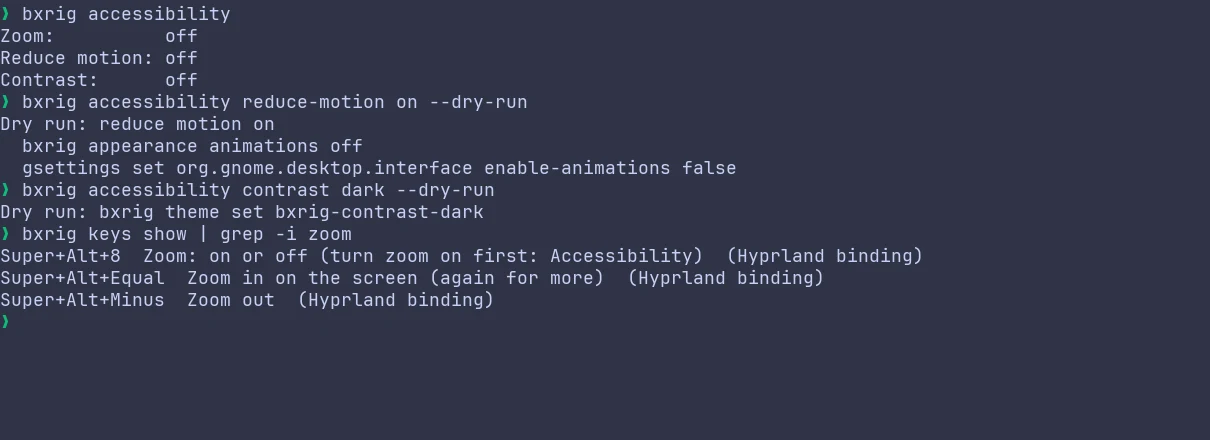
bxrig accessibility                       # what is on
bxrig accessibility zoom on               # the zoom keys start working
bxrig accessibility reduce-motion on      # no window, bar or app animations
bxrig accessibility contrast dark         # dark, light, colorblind, or off to go back to your theme
They are settings: they act at once, and --dry-run shows the commands first.
Zoom
The same keys as on a Mac (Option is Alt, Cmd is Super):
| Keys | What it does |
|---|---|
Super+Alt+8 | Zoom on or off (back to the last zoom you used) |
Super+Alt+Equal | Zoom in, half a step each time (up to 10x) |
Super+Alt+Minus | Zoom out |
While zoom is off the keys only say how to turn it on, so they never surprise you. On Hyprland the screen zooms around the pointer (cursor:zoom_factor). On Plasma BxRig loads KWin's Zoom effect and uses its shortcuts; Plasma's own keys, Meta+= and Meta+-, work too.
Reduce motion
Turns off the animations of windows and workspaces (Hyprland), of the bar and panels (Noctalia), of GTK apps (enable-animations) and of Plasma (its animation speed). bxrig accessibility reduce-motion off brings them back.
Contrast themes
| Theme | Look |
|---|---|
bxrig-contrast-dark | white on black, a yellow accent |
bxrig-contrast-light | black on white, a blue accent |
bxrig-colorblind | blue and orange instead of red and green (Okabe-Ito hues), on a dark slate |
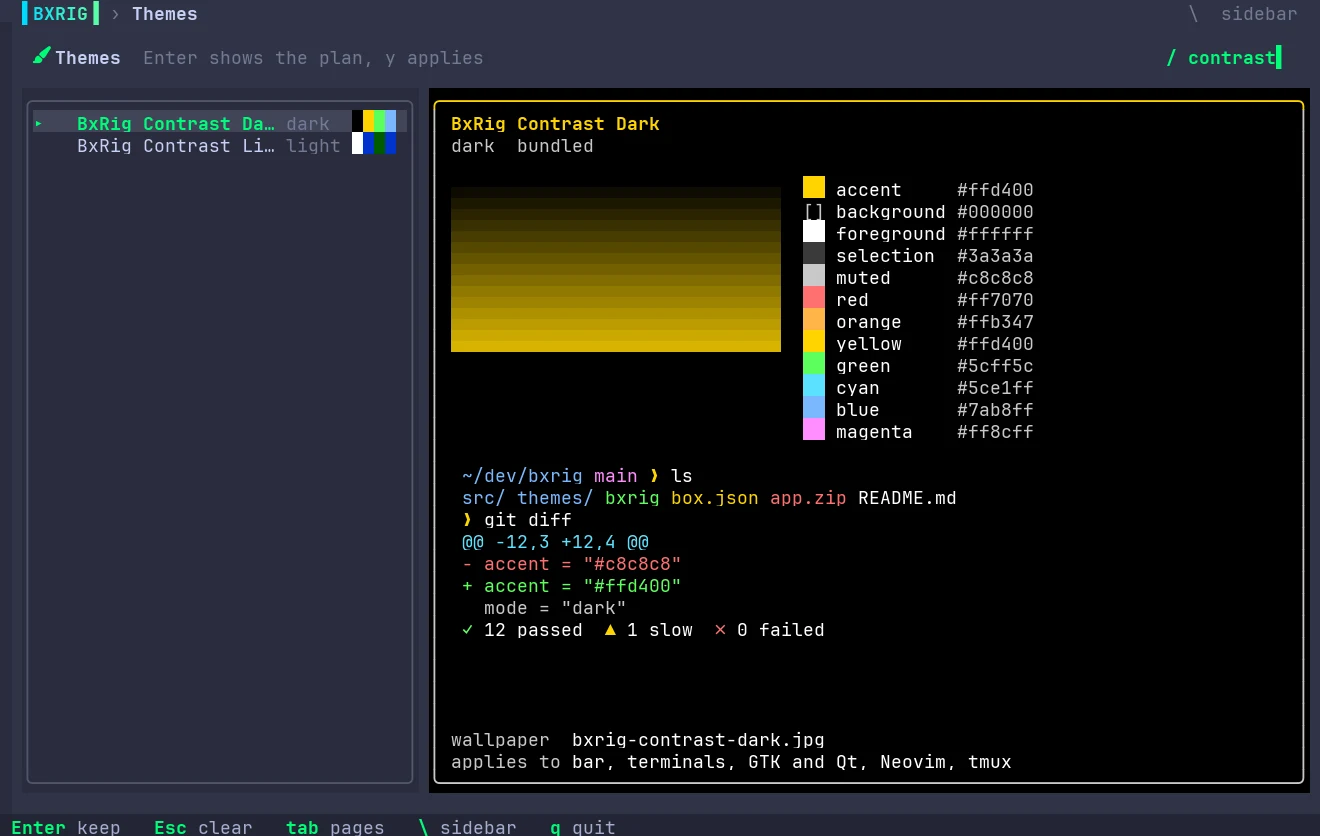
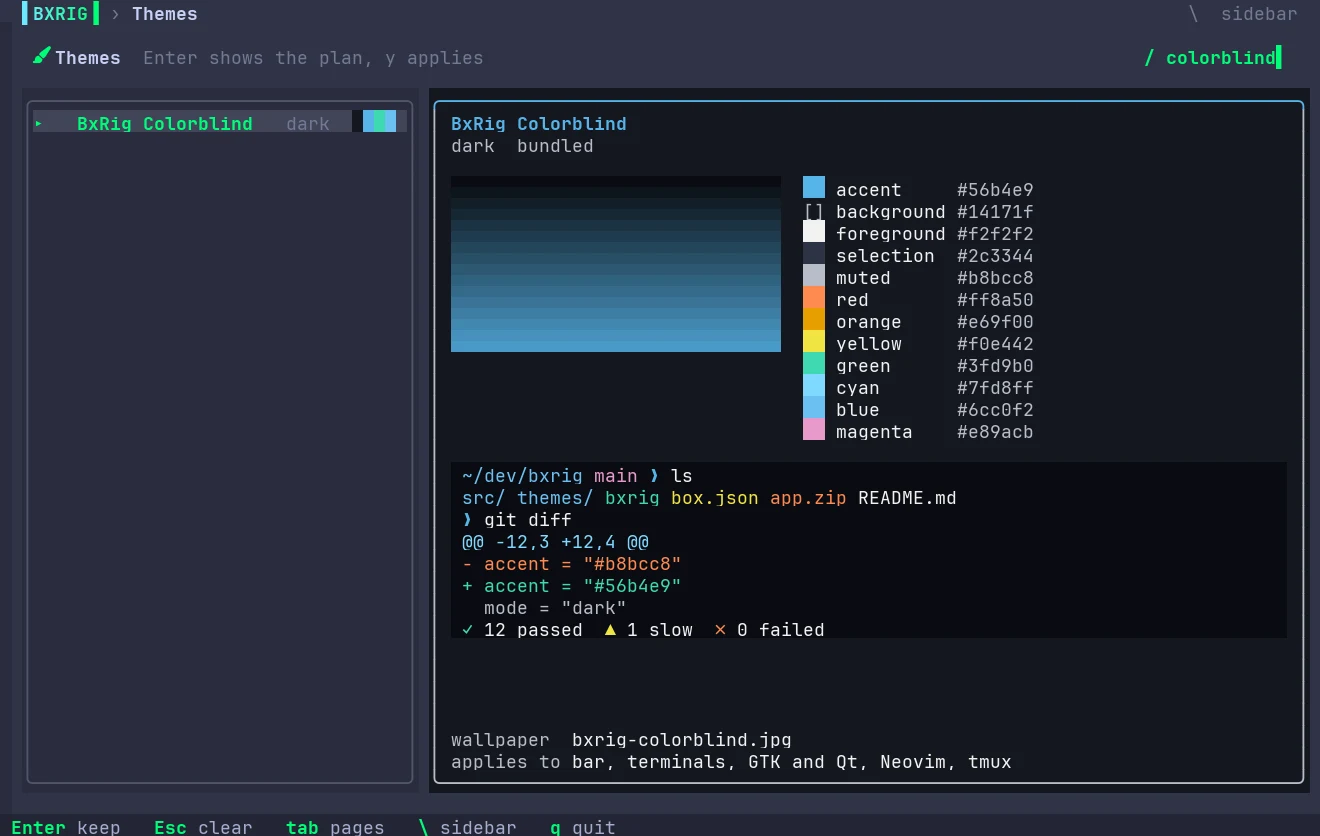
Every text colour in them is at least 7:1 against the background (WCAG AAA); a test checks it. Their wallpapers are plain, and Neovim gets the matching high-contrast or colour-blind GitHub colorscheme. bxrig accessibility contrast off goes back to the theme you had before. They are ordinary themes too: bxrig theme set bxrig-colorblind works.