The desktop
Hyprland with Noctalia, KDE Plasma with tiling and panels, and the everyday tools around them.
On this page
The desktop
BxRig sets up Hyprland with Noctalia as the main desktop. KDE Plasma stays installed and gets tiling and a status panel; pick either (or both) at the login screen (bxrig session set hyprland|plasma).
Hyprland and Noctalia
bxrig setup hyprland installs the packages one by one and writes the starter configuration once. ~/.config/hypr/hyprland.lua is yours. BxRig owns ~/.config/hypr/bxrig.lua, which it regenerates from the shortcut table; never edit that file by hand.
The bar's panels
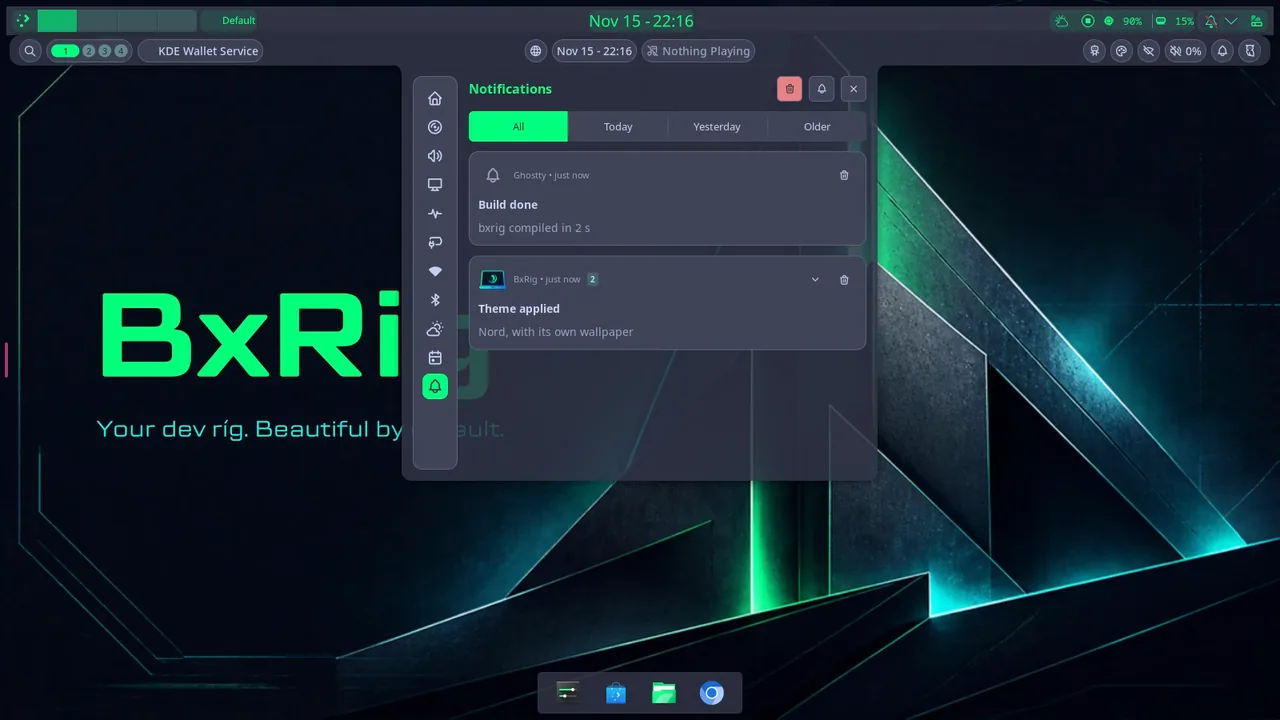
The Noctalia bar carries three BxRig panels and the notifications. Each opens from its button on the bar or a key.
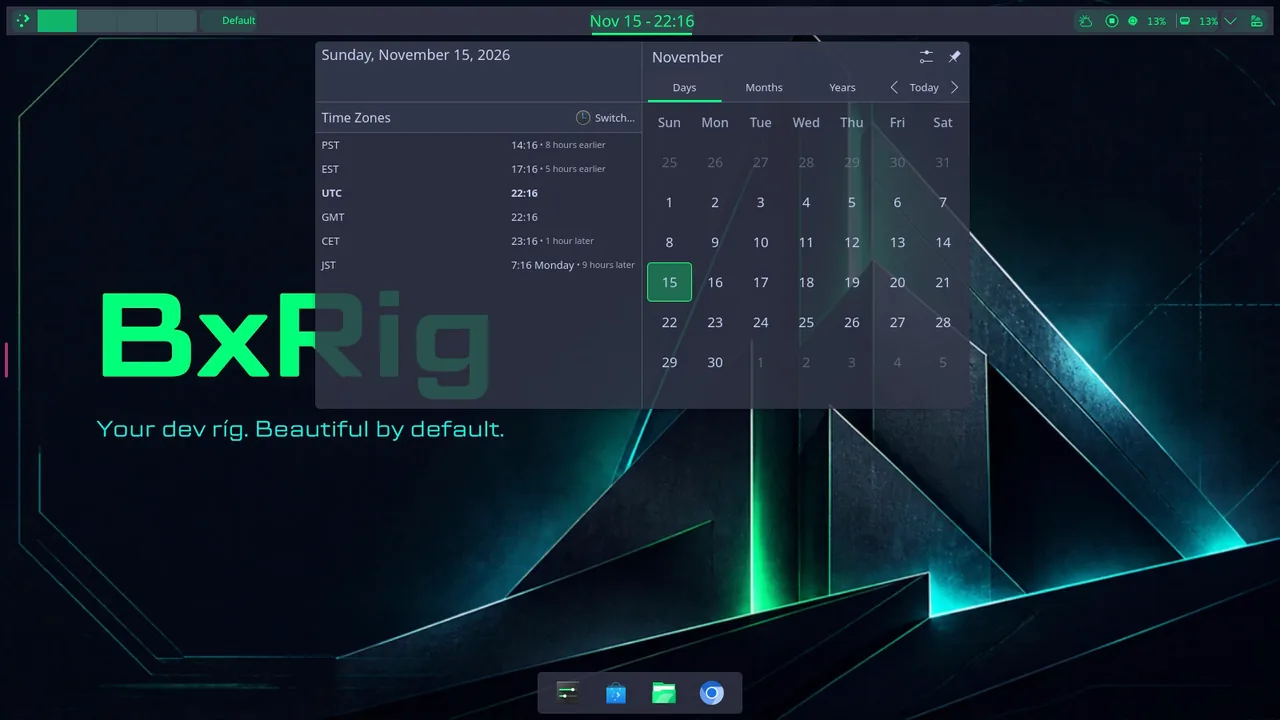
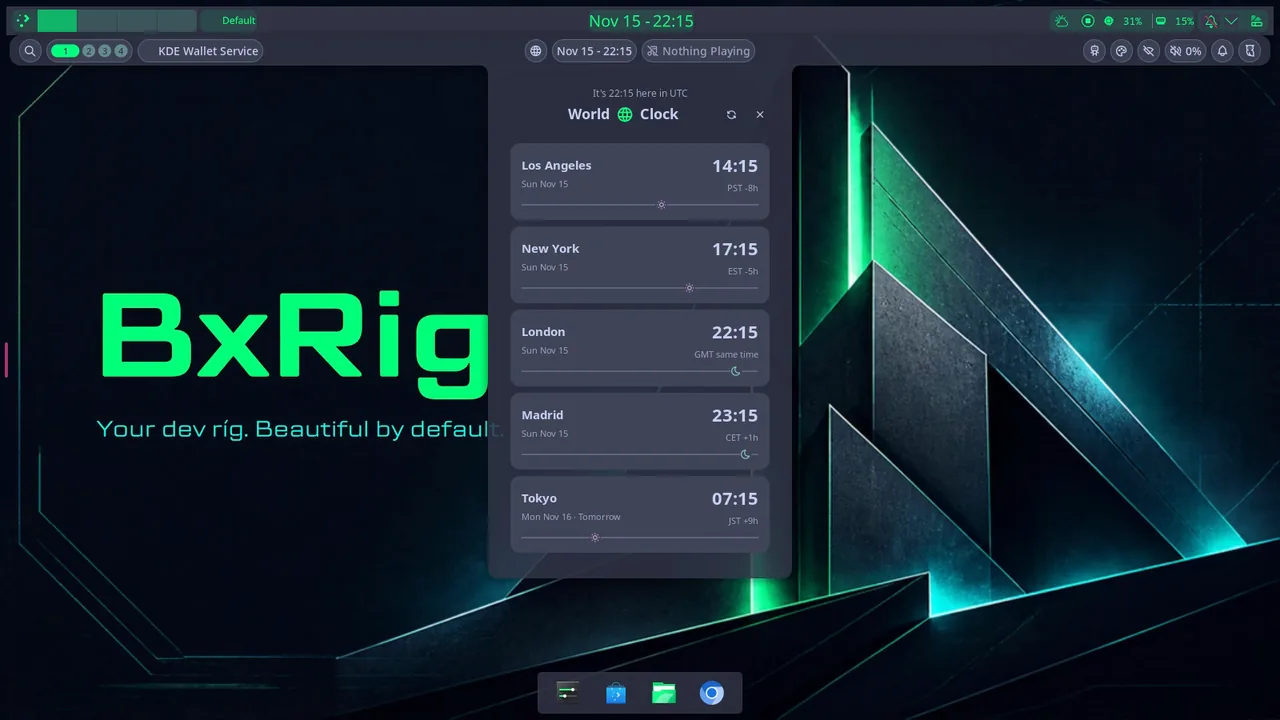 World clock · the globe before the time, or Super+Alt+W. The zones are yours: bxrig time world add Asia/Tokyo --yes | 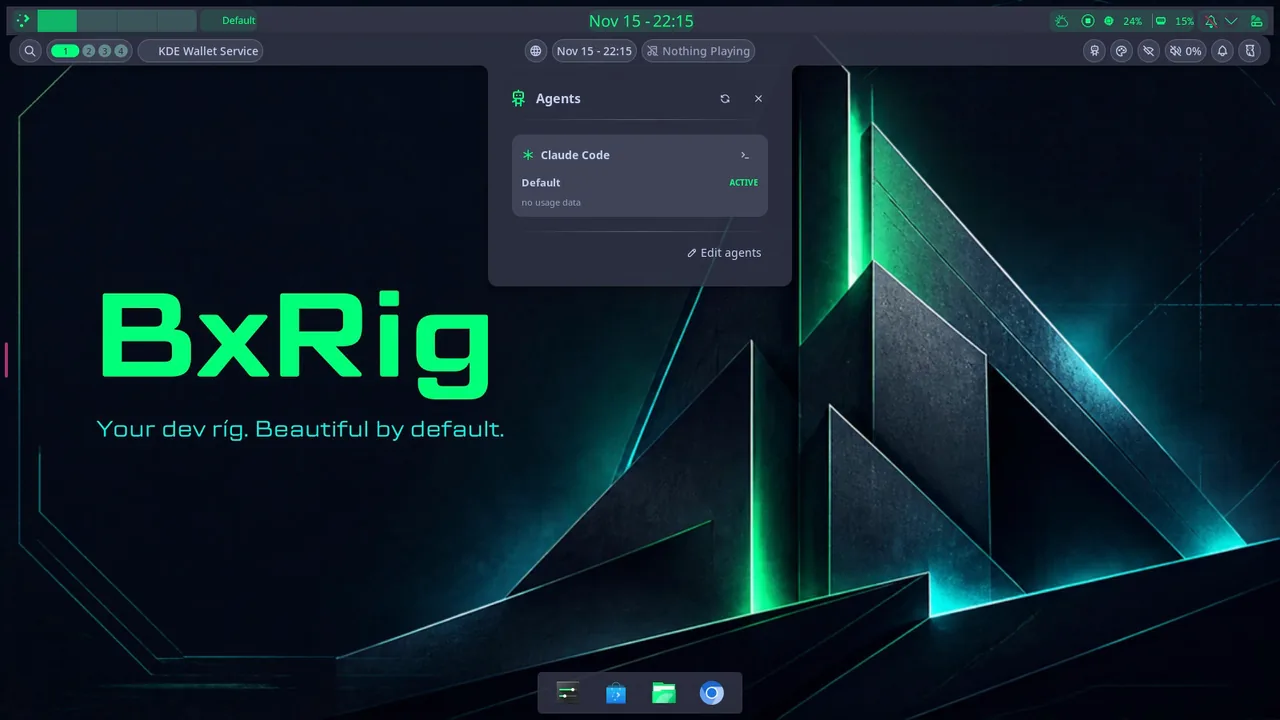 Coding agents · Super+Alt+A. The agents you have installed, their accounts and limits; launch one with a click. Edit agents (or bxrig ai panel add\|remove ID --yes) chooses which show |
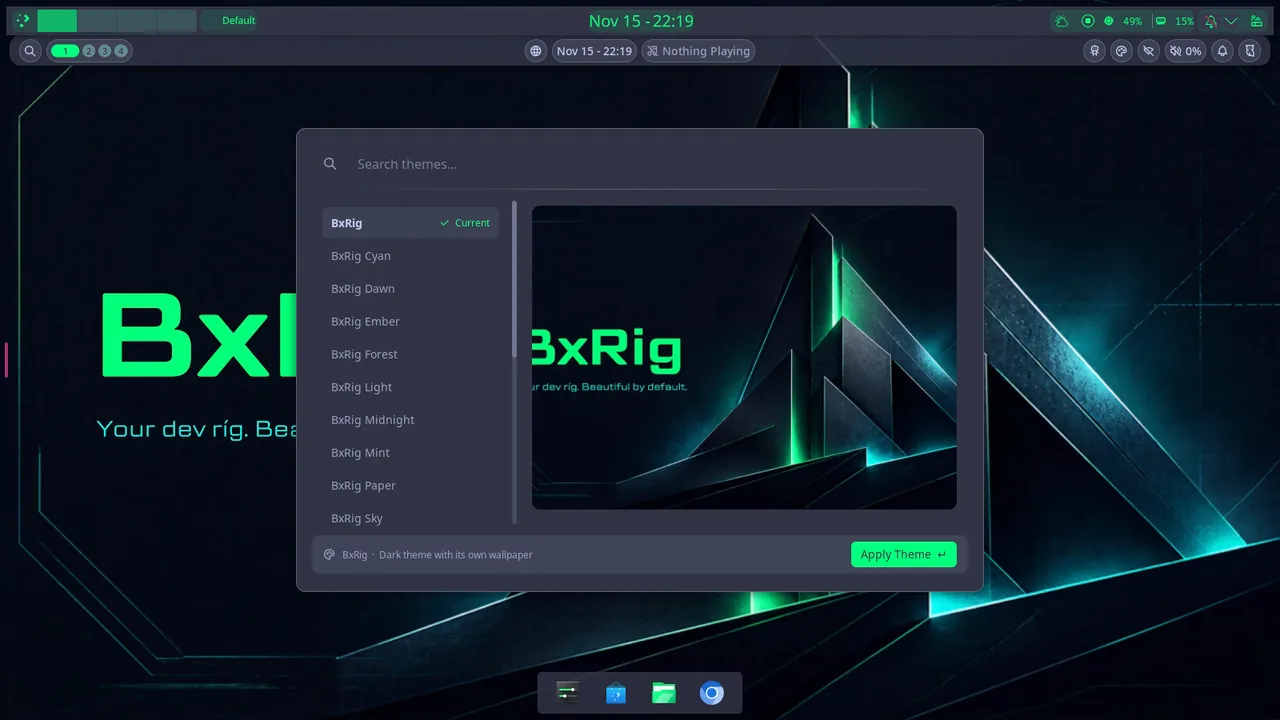 Theme switcher · Super+Ctrl+Shift+Space. See Themes | 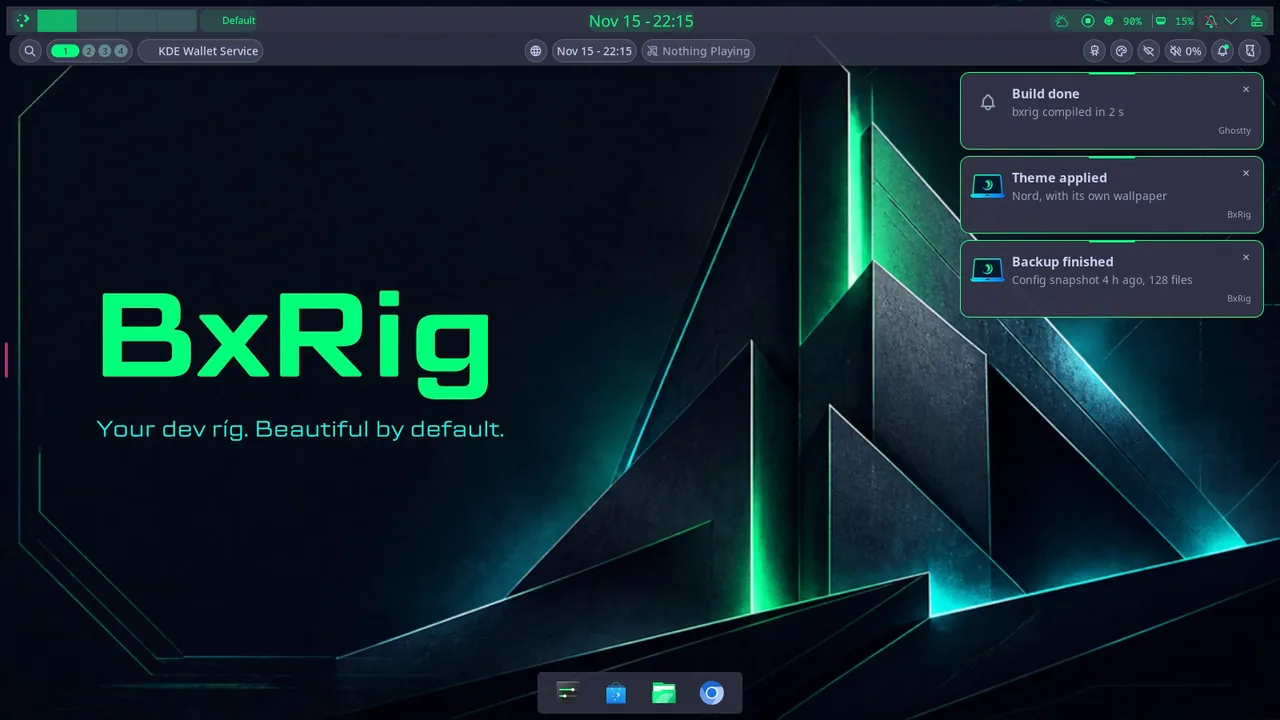 Notifications stack in the top corner, rounded and in the theme's colors. Super+Alt+, acts on the newest, Super+Shift+, opens them all |
KDE Plasma
- Tiling:
bxrig setup plasmainstalls HyprKwin and turns on the Bluetooth service (bluetooth.service, if it is not on yet). Layouts: dwindle, master, monocle, scrolling, stage.bxrig tiling on|off|status|layout NAME. - Panels:
bxrig plasma panels applyreplaces your panels with a top status panel (launcher, workspace pager, active window, clock, weather, media, system vitals, tray, in rounded islands with Panel Colorizer) and a bottom dock. Your old layout is backed up first:bxrig plasma panels undo --yesrestores it. From Hyprland it is applied at your next Plasma login. - Virtual desktops:
bxrig plasma desktops 4. - World clock: the panel clock reads
Nov 15 - 22:16; click it for every time zone you chose in the wizard (bxrig time world).
Look and hardware have their own pages: Appearance for the bar, dock, windows and fonts, and Displays, power and time for monitors, laptop power and the time zone. The control center has all of it as one menu.
Everyday tools
| Do | Command | Shortcut |
|---|---|---|
| Control center | bxrig menu | Super+Space |
| Launch apps | bxrig runner launch (the launcher you chose); bxrig apps is the All apps window | Super+Alt+Space |
| Hardware menu | bxrig menu open hardware | Super+Ctrl+H |
| Screenshot | bxrig screenshot screen\|region\|window | Print (region); Mac style also Super+Shift+3 / 4 / 5 (the 5 menu) |
| Text from the screen | bxrig screenshot ocr | in the Capture menu |
| QR codes | bxrig screenshot qr, bxrig qr TEXT | |
| Color picker | bxrig screenshot color | Super+Print |
| Record the screen | bxrig record toggle [--region] [--audio=desktop\|mic] | Super+Shift+R (Super+Alt+Shift+R a region, Alt+Print with desktop audio) |
| Webcam preview | bxrig webcam toggle | Super+Ctrl+Alt+V |
| Clipboard history | bxrig clipboard pick | Super+Ctrl+V |
| Dictation | bxrig dictation toggle | Alt+Space |
| Do Not Disturb | bxrig notify dnd toggle, notify snooze 30m | Super+Ctrl+Alt+Comma |
| Time, battery, weather | bxrig notify time\|battery\|weather | Super+Ctrl+Alt+T / B / W |
| Night shift | bxrig nightshift on\|off\|toggle | menu only |
| Hide or show the bar, the dock | bxrig appearance bar toggle, appearance dock toggle | Super+Ctrl+Alt+F, Super+Alt+D |
| Emoji | bxrig emoji | Super+Ctrl+E |
| Force quit | bxrig forcequit | Super+Alt+Escape |
| Overview | bxrig overview | Super+Ctrl+Up |
| Minimize / restore | bxrig window minimize\|restore | Super+H / Super+Shift+H |
| Maximize | (Hyprland binding) | Super+M |
| Snap to a half | bxrig window snap left\|right\|top\|bottom | Super+Alt+ arrows |
| Center a floating window | (Hyprland binding) | Super+Alt+Shift+C |
| Last workspace | (Hyprland binding) | Super+Ctrl+Tab |
| Window / workspace to another monitor | (Hyprland binding) | Super+Ctrl+Shift+ / Super+Alt+Shift+ arrows |
| Next layout on this workspace | (Hyprland binding) | Super+Shift+J |
| Narrower / wider column | (Hyprland binding) | Super+Minus / Super+Equal |
| Quake console | bxrig window quake, window quake send | Super+Shift+Grave / Super+Ctrl+Grave |
| Private browser window | bxrig browser private [URL] | Super+Alt+Shift+B (Mac style Super+Shift+N) |
| File manager in this folder | bxrig files here [DIR] | Super+Alt+Shift+F |
| Lock | bxrig system lock | Super+Ctrl+L |
| Pull-down AI shell | bxrig ai shell | Super+` |
Every key is a row of the shortcut table, in the style you chose. The quake console is the special workspace qconsole: the first press starts your default terminal on it. The private window uses the default browser (bxrig default browser). The webcam preview needs mpv, and recording with audio needs pactl.
Night shift on Hyprland runs wlsunset with your time zone's sunrise and sunset (no network lookup); on Plasma it turns on Plasma's own Night Light.
Trackpads and Apple devices
bxrig input gestures --yes sets up three-finger swipes (workspaces, overview) with libinput-gestures. bxrig input doctor checks Magic Mouse and Magic Trackpad support (the kernel driver, loaded or built in, Bluetooth, the input group). bxrig input status finds Apple Magic and Logitech devices and bxrig input offer installs the helpers for them (Solaar for Logitech, libratbag and Piper for gaming mice, upower): see Mice, trackpads and keyboards. For Option-key characters like a Mac, pick the English (US, Macintosh) keyboard layout in the wizard. bxrig airplay on starts an AirPlay receiver.
Hot corners
Rest the pointer in a screen corner to run an action. The defaults are Mac-like: top left the overview, top right the notifications, bottom left the desktop, bottom right the lock screen. Change any corner, on Hyprland (Noctalia) and Plasma (KWin screen edges) alike:
bxrig hotcorners                                      # what each corner does
bxrig hotcorners set top-left=launcher bottom-right=lock --yes
bxrig hotcorners off --yes
Actions: none, overview, notifications, desktop, lock, launcher, agents, themes. Plasma has no corner action for notifications, agents and themes; those corners do nothing there and the command says so.
Screensaver
After 2.5 minutes idle, BXRIG art in your theme's colours fills every monitor; after 5 minutes the screen locks. Any key or mouse move closes it. Six effects take turns, a minute each: a gradient sweeping across BXRIG, the BxRig laptop with a glint, BoxLang code rain, a drifting clock, a starfield and your own logo.
bxrig screensaver preview              # try it in this terminal (preview clock for one effect)
bxrig screensaver                      # the settings and the effects
bxrig screensaver set screensaver=300 lock=600 --yes
bxrig screensaver set effects=clock,stars --yes
bxrig screensaver logo text ACME --yes # or: logo image ~/Pictures/logo.png, logo reset
bxrig screensaver off --yes            # no screensaver; the lock stays
On Hyprland, Noctalia runs it as an idle behavior. On Plasma, a small user service (swayidle) starts it and Plasma's own lock screen follows the lock= setting; bxrig setup plasma installs swayidle. On both, a video or Stay awake holds it off. It is also in the menu (System > Screensaver) and on the Control Center's Look page.
Boot splash
bxrig setup boot --yes puts the BxRig splash on the boot screen (Plymouth): the laptop fades in over a soft glow while the dots pulse, and an encrypted disk asks for its password on the same screen. It shows the plan first, keeps a backup of /etc/mkinitcpio.conf, and tells you where to add splash for your boot loader. bxrig setup undo boot --yes puts the previous theme back.