Control Center
One terminal for your whole machine, with a page for each job. Run bxrig tui.
On this page
Control Center
bxrig tui opens one terminal screen with a list of pages on the left and the open page on the right.
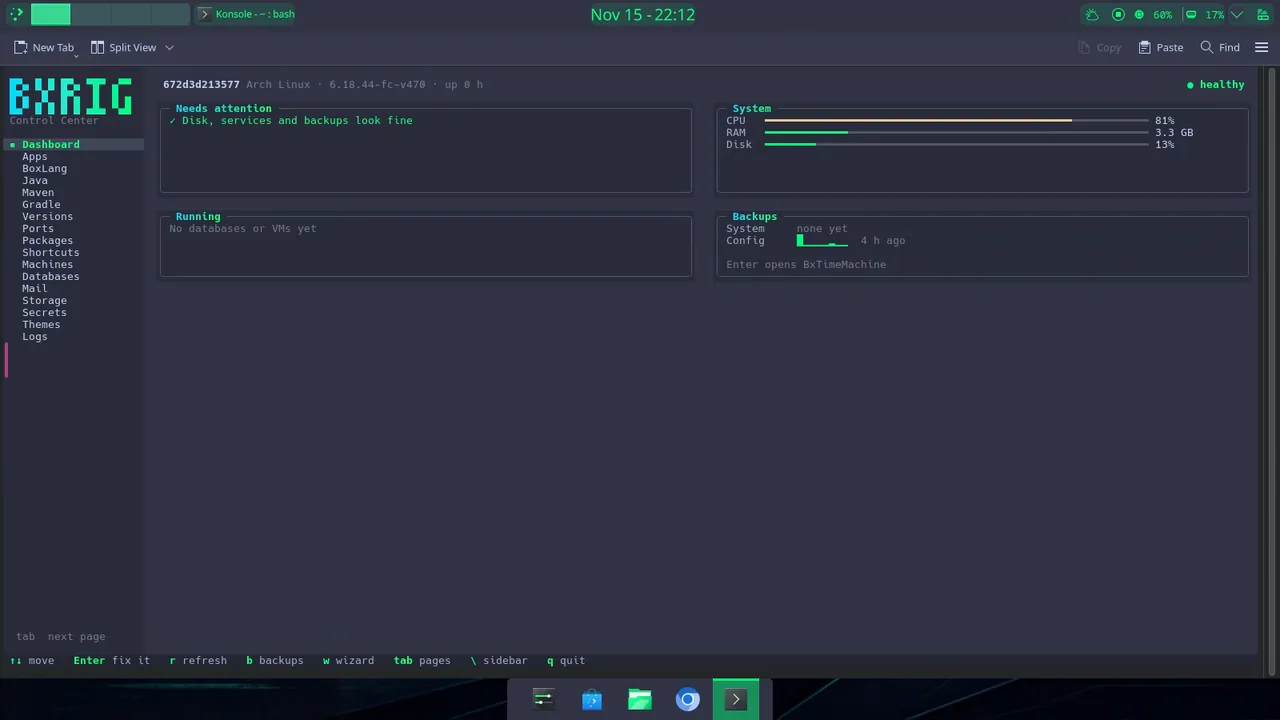
bxrig tui                   # opens on the Dashboard, sidebar open
bxrig tui databases         # one page on its own, sidebar collapsed
bxrig tui list              # every page id and title (--json for scripts)
bxrig tui --demo            # made-up data, nothing is run
bxrig tui dashboard --json  # the page's data, no terminal needed
One page at a time
bxrig tui PAGE opens that page alone, with the page list collapsed, so it feels like an app of its own: bxrig tui databases, bxrig tui ports, bxrig tui mail. An unknown page prints the list and exits 2. The top row shows where you are, BXRIG › Databases.
Open and close the page list with the backslash key or Ctrl+b (while a page is taking text, such as a filter, only Ctrl+b works). You can also click the thin strip at the left edge or the breadcrumb row, or press Left. Tab and Shift+Tab still change page. --sidebar and --no-sidebar force it either way. On a terminal narrower than 90 columns it starts collapsed so the page gets the room. BxRig does not remember the state: the next bxrig tui starts open again.
You can open any page without a terminal open first:
- Menu:
bxrig menuhas a Control Center section at the end. The first entry opens everything, then one entry per page. Each opens in your default terminal. - Application menu (optional):
bxrig launchers on --yesadds a "BxRig" submenu to your application menu: the Setup Wizard, the Runner Menu and the Control Center at the top, then Apps and Dashboard, then folders with their own icon (Develop, System, Look) holding one entry per page (menus without folders, like rofi, list them flat).bxrig launchers statusshows them andbxrig launchers off --yes(orbxrig remove launchers --yes) takes them away. Entries you edited are kept. Nothing is added unless you ask. - Shortcuts: every page has an unbound shortcut (
tui-databases, ...). Give it keys withbxrig keys set tui-databases Super+Alt+B --yes, thenbxrig keys apply --yes.
Icons
The page list and page headers carry Nerd Font icons when your terminal has the font (the BxRig wizard installs one for Starship). They are on when a Nerd Font is found, and you can force them: bxrig tui --icons=on or --icons=off, or set BXRIG_ICONS. Without the font they would show as boxes, so BxRig leaves them off. Emoji are not used, because terminals draw them two cells wide and the tables would not line up.
Keys
| Key | What it does |
|---|---|
Tab, Shift+Tab (or ], [) | next and previous page |
| Left | move to the page list (Up and Down pick a page), Right or Enter goes back; with the list collapsed, Left opens it |
\, Ctrl+b | collapse or open the page list |
| q, Escape, Ctrl+c | leave |
| mouse | click a page or a row, scroll the wheel |
The key bar at the bottom shows the keys of the page you are on.
Dashboard
The first page shows what needs your attention, then the state of the machine:
- Needs attention: updates waiting, a backup older than two days (or none yet), a disk over 85% full, a battery under 20%. Move to a line and press Enter, or press its key, to see the plan of the fix. Nothing changes until you press
y. - System: CPU load, memory, disk and battery.
- Running: your databases and VMs, with ports.
- Backups: how fresh each place is. Enter opens BxTimeMachine, and you come back to the Dashboard when you leave it.
Each part is read on its own. If one cannot be read, the rest still shows.
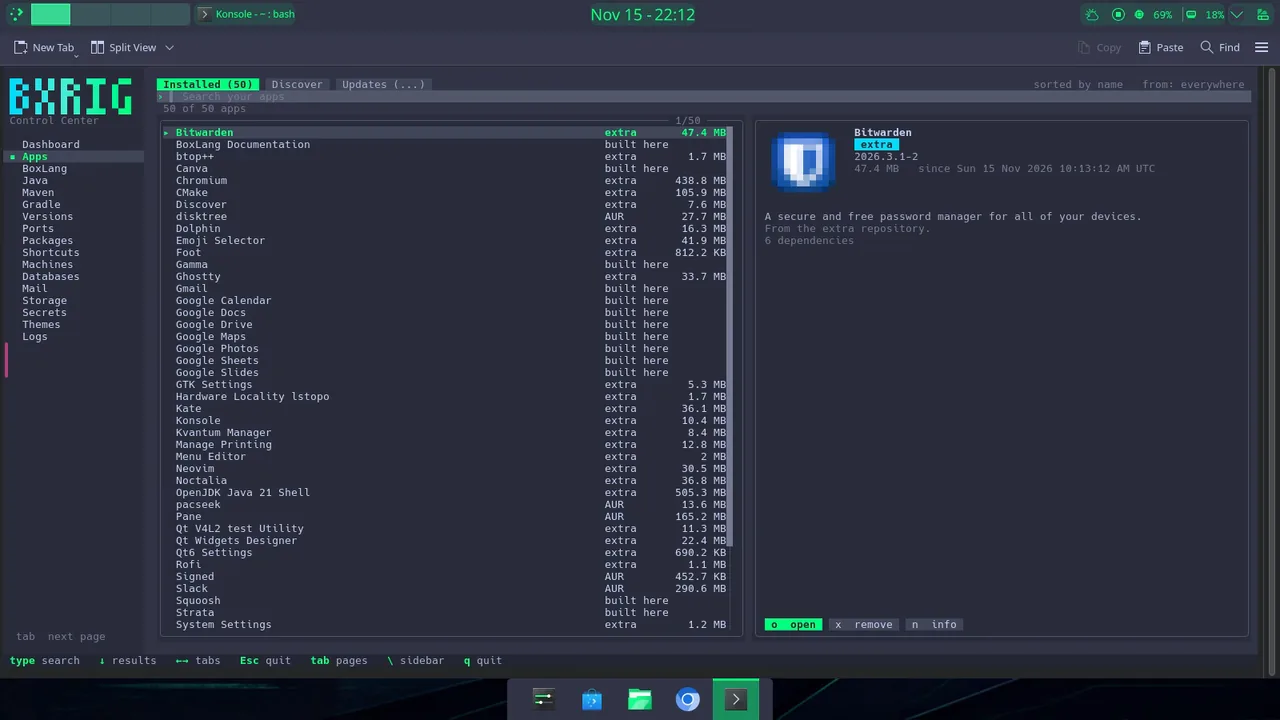 Apps | 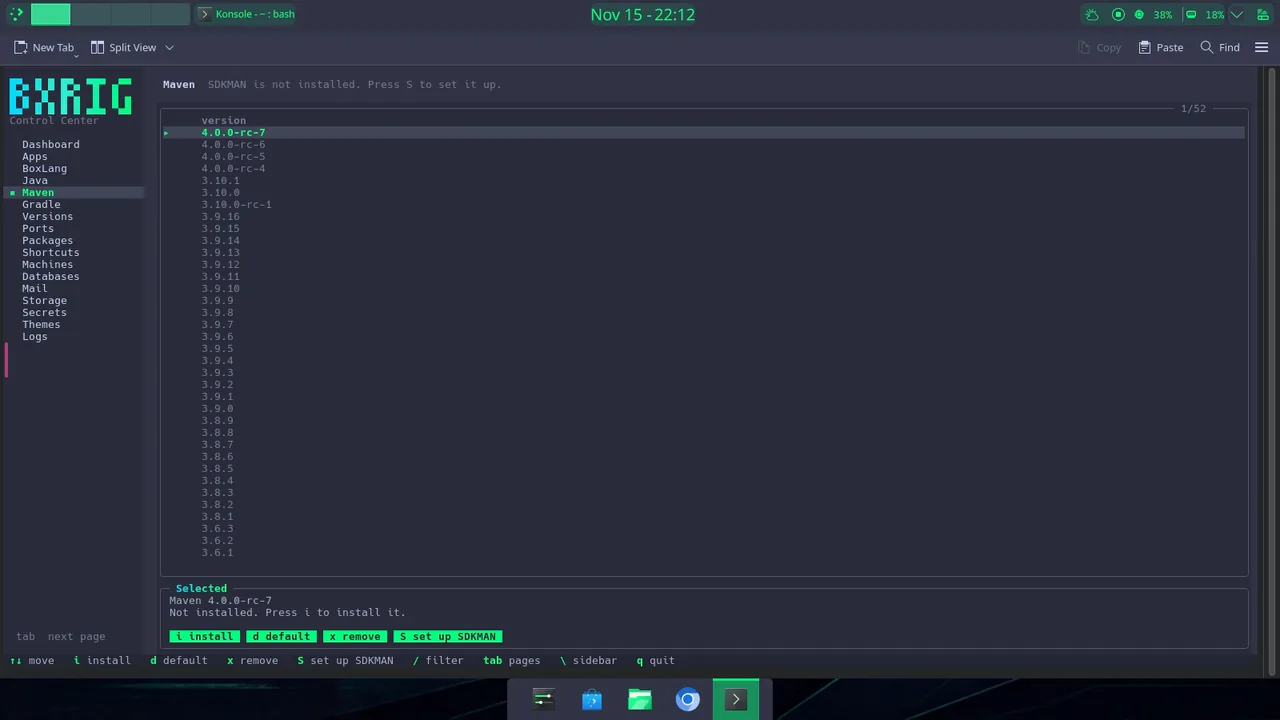 Maven (Java, Gradle and BoxLang look the same) |
Pages
| Page | What it does |
|---|---|
| Dashboard | what needs attention, meters, what runs, backups |
| Apps | install, remove and update software: Installed, Discover and Updates tabs, a search box that is always there, icons and screenshots (see Apps) |
| AI | your local models on llama.cpp: Enter makes one active or downloads a pick, p asks a question, t tests, u tunes, b runs the bench, h opens it on Hugging Face, x removes it, s sets everything up (see Local AI) |
| Discover | models for this machine: BxRig's staff picks, then GGUF models on Hugging Face (/ searches). Enter queues a download, c cancels one, x clears finished ones, h opens Hugging Face |
| Agents | your coding agents: the default one, which use the local model, their tmux sessions. Enter starts a session, d makes one the default, l points it at the local model or back, s lists the sessions |
| BoxLang agents | your bx-agents agents: Enter opens the chat in a terminal, o the web page, s starts or stops it, d the default one, l its log, i installs or updates bx-agents (see BoxLang agents) |
| BoxLang | BoxLang versions through bvm: use, install, remove |
| Modules | BoxLang modules from ForgeBox: installed and latest versions, i install, u update, x remove |
| Servers | your BoxLang and CFML web apps: s start or stop, r restart, o open, f the folder, l the log, a add one, x forget it |
| Tasks | the scheduler: every timed job, when it runs next and how its recent runs went. Enter shows one, r runs it now, p pauses it, g its group, a adds one, x removes it |
| Java | your Java homes: default, remove, and a to browse every JDK SDKMAN offers and install one (see bxrig java) |
| Maven | every Maven version SDKMAN offers, installed ones marked: install, default, remove (see bxrig sdk) |
| Gradle | the same for Gradle |
| Versions | BoxLang, MatchBox, Java and Node in one table; Enter opens the deep page |
| Ports | what listens on which port and who owns it; stop or kill it, with a plan first. A port with two owners is red |
| Network | the Wi-Fi you are on, your VPNs, the DNS providers (the one in use is marked, with their last benchmark times and the fastest) and the last internet speed. t speed test, b DNS benchmark, u use the DNS on the row, c VPN on or off, q the Wi-Fi QR code, w bring Wi-Fi back |
| Packages | search the repos and the AUR with /, then install or remove |
| Shortcuts | every shortcut; rebind (it asks for the keys), reset, conflicts |
| Machines | your VMs (Windows and Linux desktops in containers): start, stop, info, new |
| Databases | the databases BxRig runs: start, stop, info, new |
the mail your apps send to the catcher (bxrig mail): headers and text of the highlighted message, delete, clear, open it in the browser, send a test; it refreshes by itself every 3 seconds | |
| Storage | this computer's disk first (space used and the last disk speed; t tests it), then NAS shares and cloud remotes: mount, unmount, test |
| Secrets | names only; v shows one value for one look |
| Boxy | Boxy's look and voice: its sprite, the speech setting (v) and the outfits (Enter puts one on, e writes the pictures); see Boxy's look and voice |
| Android | Android apps with Waydroid (off until you turn it on): the state, then your apps; Enter opens one, s starts or stops it, r registers it for Google Play, S shows the plan to set it up (see Android apps) |
| Privacy | what leaves this machine: where each agent's model runs, keys by name, MCP servers, telemetry, chat folders; l/L local model on or off, t/T telemetry off or on (see MCP and privacy) |
| Look | the top bar layout (Minimal, Standard, Dense) with a picture of the bar and the dock, battery percentage, clock format, the key that hides the bar, the app grid style (Launchpad or Terminal-style) and the dock. - and + (or Right, Space, Enter) pick the previous or next value, and the plan comes first. The color theme is a link to the Themes page |
| Themes | the 24 themes with a palette and wallpaper preview; Enter shows the plan, y applies |
| Accessibility | zoom, reduce motion and the three contrast themes, one row each; Enter (or Space) switches the row, with the plan first |
| Logs | the journal of this boot; p changes the lowest priority shown |
In a table, / filters the rows (or searches, on Packages), Enter keeps it and Escape clears it. Every key that changes something shows a plan first.
How the pages fit together
Every screen shares one kit for lists, tabs, plan boxes and meters, so they look and behave the same. A page is a small class, which is also how new pages are added. A page can send you to a full screen such as BxTimeMachine and bring you back.
Look and Themes
bxrig tui look shows the bar you have in a Preview box (the same text-chip pictures the wizard draws) and the settings below it in three groups: Bar (top bar layout, battery percentage, clock format, the bar toggle key), Colors (a link to the Themes page) and Apps (app grid style, dock). The values come from the read-only status commands (bxrig appearance bar layout status, appearance appgrid status, appearance battery-percent status, time format). A change is an ordinary command: the plan box shows it with --dry-run, and y runs it.
bxrig tui themes is the bigger selector: every theme, with Enter to apply it. The sidebar lists Look and Themes as two pages; the Look page has no theme list of its own.
The whole Control Center is drawn in the colors of the theme you applied last (~/.config/bxrig/theme.json), at start and again within a second of applying another one from the Themes page. --demo keeps the BxRig colors.
Back into the wizard
The setup wizard is one entry away from anywhere: "Setup wizard (re-run, prefilled)" in the runner menu (second row, after Apps), "BxRig Setup Wizard" in the application menu, w on the Control Center Dashboard, or bxrig init. It starts from your saved answers merged with what this machine already has, shows the review, and changes nothing until you confirm.