Android apps
Android apps on your desktop with Waydroid, Google Play by default. Off until you turn it on.
Android apps
BxRig can run Android apps next to your desktop apps with Waydroid: Android in a container, each app in its own window. It is off until you turn it on. A normal install and bxrig init do nothing about it (the wizard asks, and the answer is "Not now" unless you change it), and every command that changes something shows its plan first.
bxrig android                       # is it set up? is it running? does this machine support it?
bxrig android setup                 # the plan: what would be installed and downloaded
bxrig android setup --yes           # do it (Google Play); --vanilla for no Google
What you need
- A Wayland session. Hyprland is one, and so is Plasma on Wayland. An X11 session does not work.
- The kernel's binder driver. The CachyOS kernels have it. On another kernel, install
binder_linux-dkmsfrom the AUR and restart; BxRig never changes your kernel itself, andsetuptells you when it is missing. - Arch, CachyOS, Debian or Ubuntu. openSUSE has no Waydroid package, so BxRig does not offer Android there.
- About 1.2 GB of download for the image, and your password for the install.
Set it up
bxrig android setup --yes runs these steps, each one shown in the plan before anything happens:
- On Debian and Ubuntu, add Waydroid's package repository (
repo.waydro.id). - Install
waydroid(from the official repositories on Arch). - Download the Android image:
waydroid init -s GAPPSfor Google Play, or-s VANILLAwith--vanilla(LineageOS without Google). - Start the
waydroid-containerservice now and at every boot. - Start your Android session.
Run it again and it does only what is missing. With a different image than the one you have (--vanilla over Google Play), it replaces the image and says so in the plan.
Use it
bxrig android apps                  # the Android apps installed
bxrig android open                  # Android itself, full screen in a window
bxrig android open Settings         # an app: its name, a part of the name, or its package
bxrig android install ~/Downloads/app.apk --yes
bxrig android stop                  # stop the session (it frees the memory)
bxrig android start
Apps also appear in your applications menu once they are installed. An .apk has to support x86_64: one built only for arm will not run. F-Droid is a good place to get apps without Google.
Google Play
Google Play shows "device not certified" until you register the device once:
bxrig android register              # prints this device's Android ID and where to register it
bxrig android register --open       # and opens that page in your browser
Open Google Play once first, so the ID exists. Register the ID on your Google account at google.com/android/uncertified, give Google a few minutes, then bxrig android stop and bxrig android start. The vanilla image has no Google Play, so there is nothing to register.
Take it out again
bxrig android remove                # the plan: stop it, disable the service, remove the package
bxrig android remove --data --yes   # and delete the images and everything in Android (apps, their data)
Without --data the images and data stay on disk, so setting it up again is quick.
In the Control Center
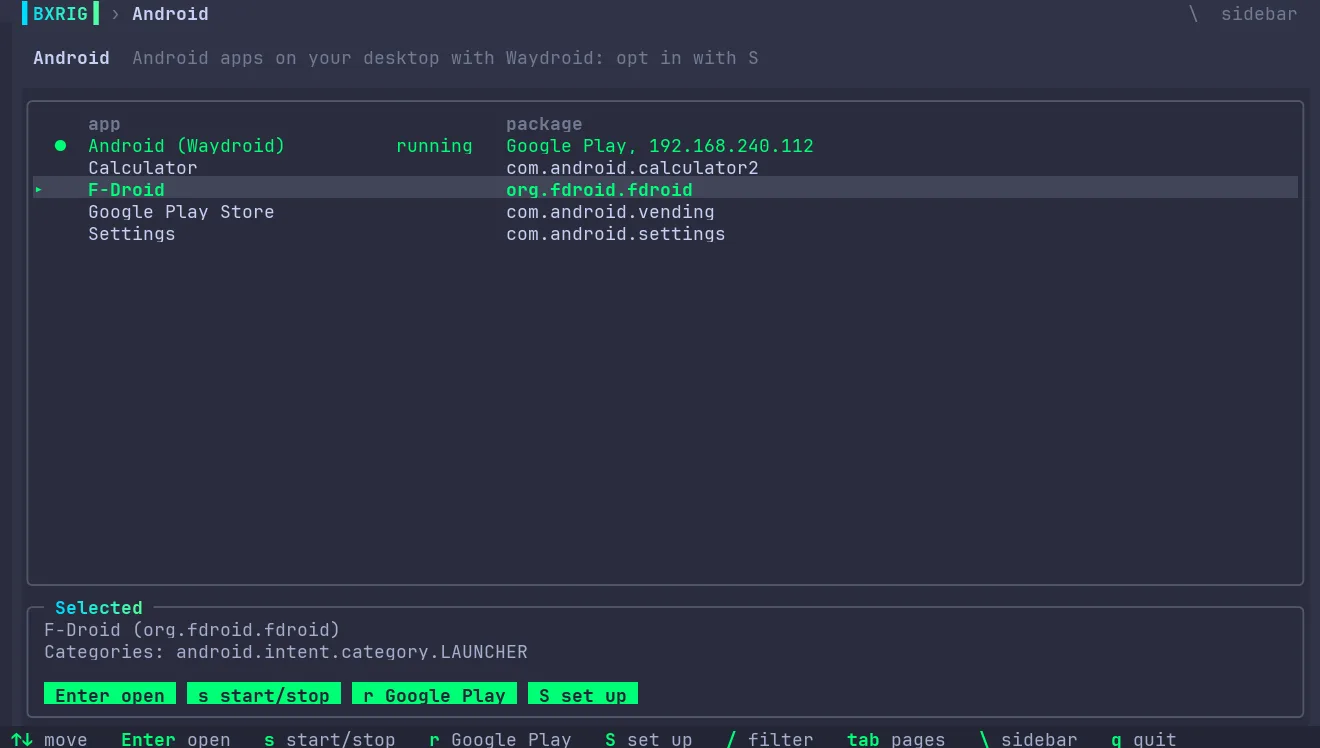
The Android page (bxrig tui android) shows the state first. While it is off, the page says so and S shows the plan to set it up. Once it is on it lists your Android apps: Enter opens one, s starts or stops Android, r registers it for Google Play.
Waydroid is also in the app catalog as an optional app on Arch (bxrig install waydroid), but bxrig android setup is the way to set it up properly.